

Wi-Fi Troubleshooting You Can Try At Home
It can be frustrating if you’re experiencing slow Wi-Fi or it’s consistently dropping out on the weekend or of a night time when calling support might not be an option. To help, we’ve compiled a list of troubleshooting tips you can try at home so you can get yourself back online as soon as possible!
Before we get into the list, it’s important when troubleshooting your Wi-Fi connection to start with one step at a time and test the connection in between each one. This way, you can identify what fixed the issue, which is helpful if the problem happens again in the future.
1. Check for Outages in Your Area
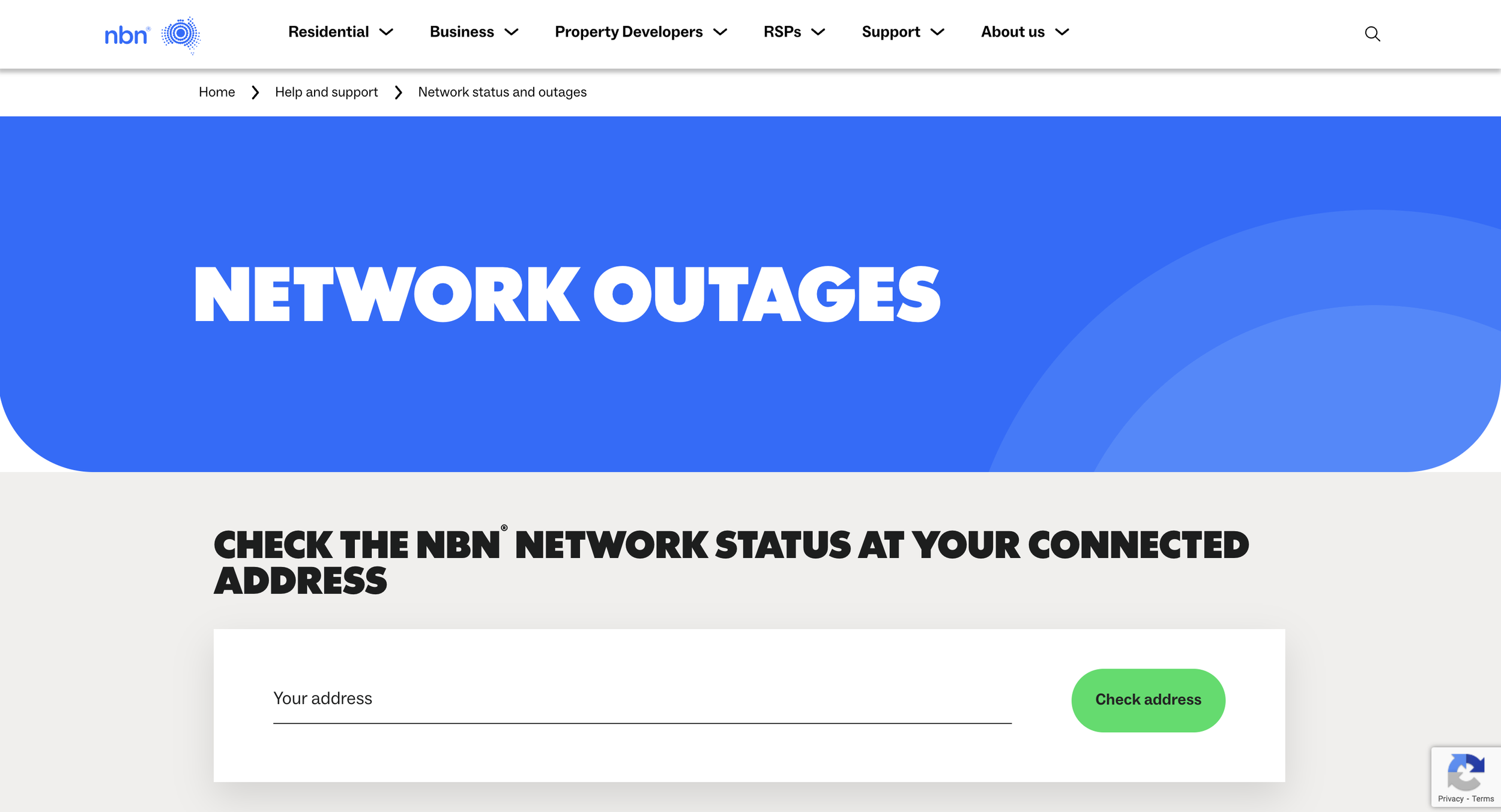
NBN’s Network Outage Website
Before diving into in-depth troubleshooting, there’s a couple of quick checks you can do. It’s worth checking if there is an outage in your area. You can check your address on NBN’s outage page here. Sometimes, service interruptions can affect your connection. These outages could either be planned or unplanned & NBN’s outage website may or may not indicate an estimated time that the outage will be finished.
What to do:
Check NBN’s website for any outage notices in your area. It can be found here.
If there is an outage, note the estimated time it will be finished and check back at that time.
2. Run a Speed Test
Another quick check that you can do is run a speed test. Sometimes, the issue isn’t with your connection, but the speed you’re receiving. Running a speed test will help you verify if you’re getting the speeds you’re paying for. Speeds can slow down between 7pm and 11pm, NBN considers this “peak time” when a lot of users are online. If the speedtest produces slower speeds during that time, there’s a chance your internet is fine, and that the network is just under load.
For FTTN (Fibre to the Node) connections, it's also worth knowing that speeds can be affected by how far your home is from the node. The signal travels over copper wire from the node to your house, and that copper degrades over distance. FTTP (Fibre to the Premise) doesn't have this limitation. With FTTP, fibre runs all the way to your home, which is one of the main reasons it delivers faster and more consistent speeds.
What to do:
Use a reliable speedtest to check your download and upload speeds. We recommend speedtest.net
Compare the results with the speeds your internet plan has listed, noting that your plan will also list typical evening speeds.
If the speeds are slower than expected, try the troubleshooting tips below. If you’re still experiencing slower speeds after trying these steps, we’d recommend contacting your ISP.
3. Test the Connection on Multiple Devices
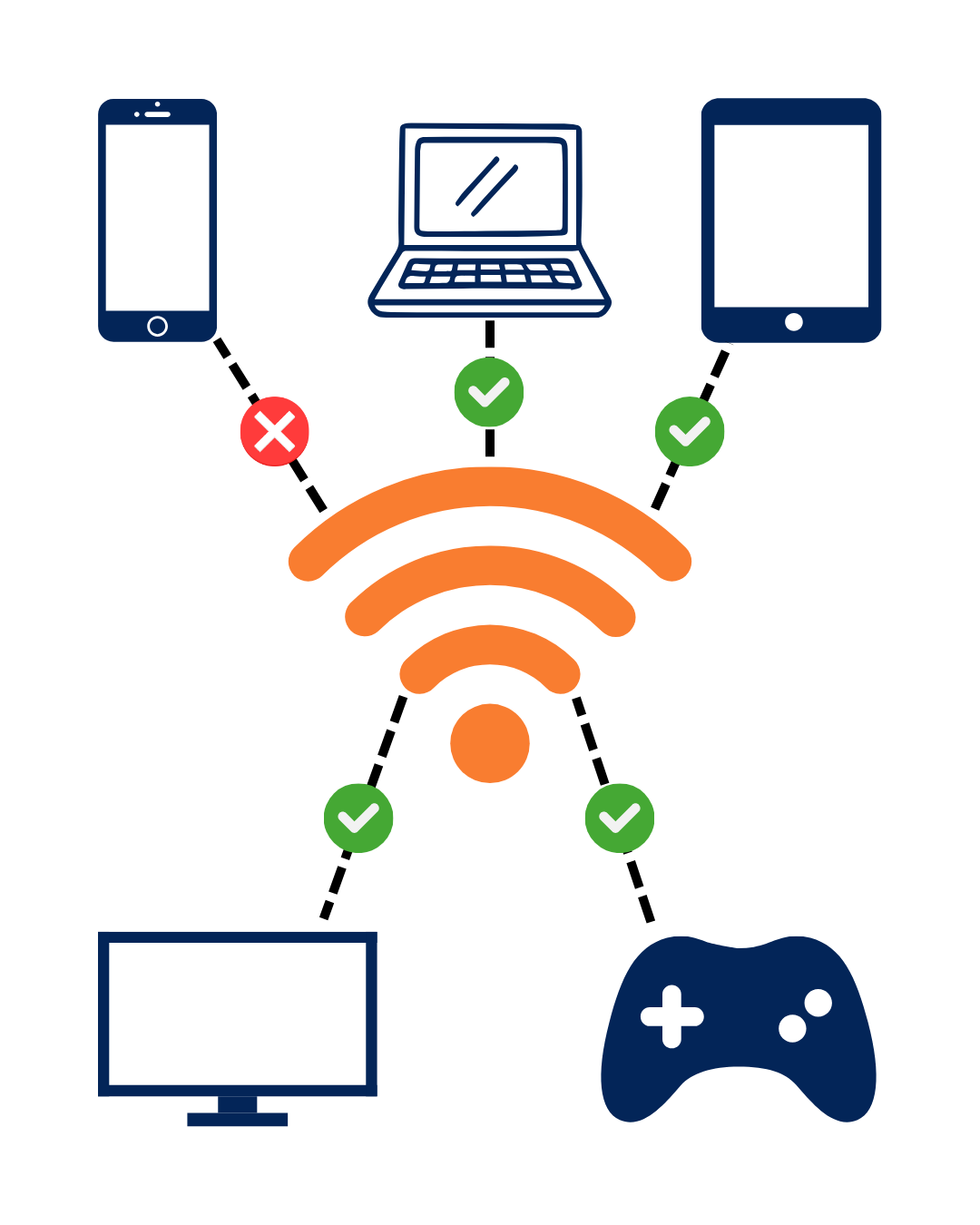
If your Wi-Fi is slow or not working on one of your devices, the issue might be with that device itself, not the internet connection.
What to do:
Try connecting to the Wi-Fi with another device, such as your phone, laptop or tablet.
If other devices work fine, the problem is likely with the original device.
If possible, plug the faulty device directly into the modem using an Ethernet cable to rule out wireless signal issues.*
* This won’t be possible on devices without an ethernet port such as phones or tablets.
4. Restart Your Device
If you’ve tested multiple devices and determined just one or a few of your devices have issues, restarting your device can refresh its connection to the network.
What to do:
On your device, navigate to your Wi-Fi settings, find your network and click “Forget network”
Turn off and restart the device experiencing issues, whether it’s your phone, tablet or laptop.
Once your device powers back on, reconnect to your Wi-Fi network and check if the issue persists.
5. Power Cycle Your Modem
It might sound simple, but turning your modem off and back on again can resolve many connectivity issues. Power cycling reboots the modem and can help clear up any temporary glitches. It can also help cool the modem down in case it’s overheating and that’s causing the issue.
What to do:
Turn off your modem, unplug it and leave it off for 3-5 minutes.
Plug your modem back in, turn it on and wait for all the lights to stabilise before reconnecting to Wi-Fi.
6. Check for Interference
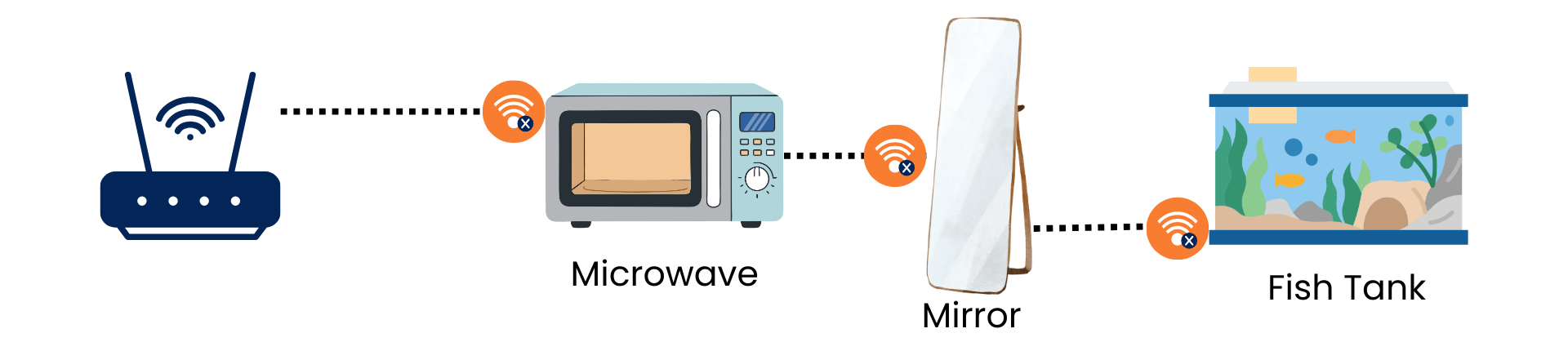
Other devices in your home, like microwaves, cordless phones, mirrors, water or baby monitors, can cause interference with your Wi-Fi signal.
What to do:
Try moving your router away from electronic devices that could cause interference.
7. Reposition Your Router
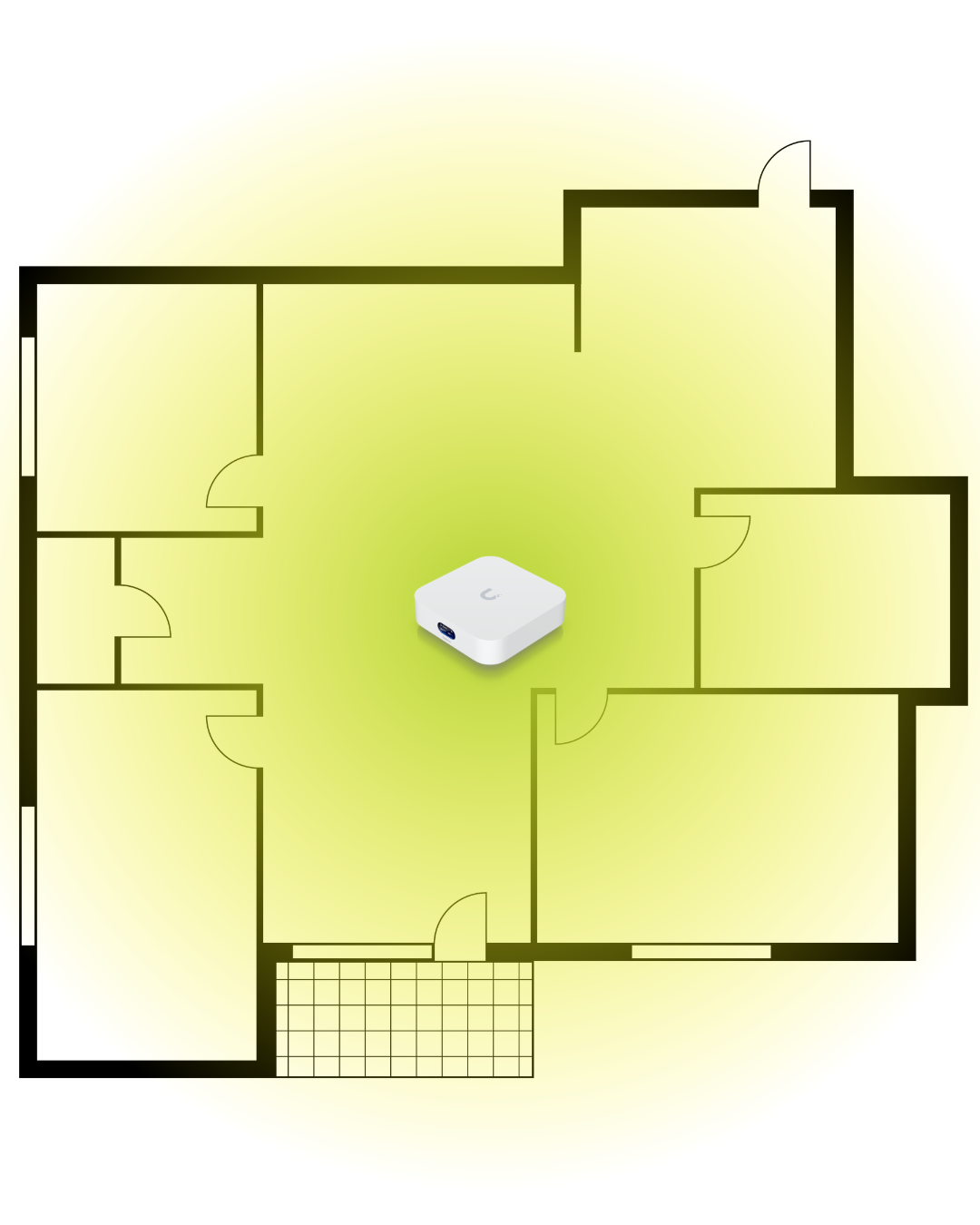
We’ve left this step until the end as it is the most involved troubleshooting check. The placement of your router can significantly affect your Wi-Fi performance. If your router is hidden away in a corner, behind furniture or in the garage, it might not be reaching all areas of your home properly.
Even in a central location, your router’s performance is still affected if your house is constructed of brick, concrete, metal or another material that impedes Wi-Fi signal.
Unfortunately, the location of your router is largely influenced by the location of your NBN connection box (if your property is FTTP). In order to move your router to a new location that is further away from the NBN box, you may need a longer ethernet patch cable to reach.
What to do:
Move your router to a more central, open location, ideally higher off the ground.
Make sure it’s not blocked by walls or other large objects.
If your router’s cable isn’t long enough to move it, consider getting a longer Ethernet patch cable to extend the connection from your NBN box to the router.
I’ve Tried All These Steps And I’m Still Having Issues
If you’ve tried all these steps and you’re still experiencing issues, reach out to us.
If you're on an FTTN connection and consistently struggling with speeds, ask us about a free FTTP upgrade check, as fibre to your home can make a significant difference.